![SDG_logo_black.png]](https://knowledge.sandowdesign.com/hs-fs/hubfs/SDG/Identity/SDG_logo_black.png?height=40&name=SDG_logo_black.png)
After your media plan or contract is finalized, our project management team will share details regarding your print submission. They will contact to you by email with the due date and the SANDOW AdShuttle link to upload materials.
📰 How to create an AdShuttle account
AdShuttle should be used to process your Interior Design, Metropolis and AZURE print-ready ad submissions. Please make sure to access the platform from the SANDOW AdShuttle link provided.
- Create an account at https://www.adshuttle.com/sandow/
- First time users will receive an activation email sent to the provided email address
🖼️ File preparation requirements to review before uploading
As a best practice, high-resolution and professionally shot images are recommended, showcasing lifestyle or room settings with bright colors and unique interior or architectural features.
-
Color Profile: all ads must be U.S. Web Coated (SWOP), CMYK mode
-
Bleed: all ads should include a full bleed (125” beyond trim on each side) with crop marks indicating the trim area
-
Safety: place live elements 0.375” from trim on all sides, we recommend spreads place live elements 0.375” from each side of the gutter
-
File Type: high-resolution press-ready PDF (300 dpi, PDFX-1A)
📑 Steps to follow for completing a new submission
Navigate to the SANDOW AdShuttle page at https://www.adshuttle.com/sandow/, Log In, and begin with the green button labeled “Start New Submission”.
Publication: Select from the drop-down menu, each publication is preset with the designated specs
- Interior Design Magazine (monthly issues)
- Interior Design Market Tabloid (seasonal tabloid issues)
- Interior Design NeoCon Directory
- Interior Design NeoCon Show Daily
- Metropolis (all issues)
- AZURE (all issues)
Issue: Select from the drop-down menu, the issue will be indicated in the materials request email you received from our project management team (Interior Design month/year, Metropolis months/year, AZURE season)
Advertiser: Fill in your company name in this form field
Ad Size: Select from the drop-down menu, the as size will be indicated in the materials request email you received from our project management team (ex. Full Page, Half Page, Spread)
Proof Option: Select from the drop-down menu
- Print without a color proof: default, this proof option waives your need for proofing
- I will send color proof: if color accuracy is a concern and you have obtained a certified SWOP proof, please select this option and reach out to printmaterials@sandowdesign.com for shipping information
- Request a color proof from SANDOW: if the color accuracy is a concern and you would like to request a proof, please select this option and our production team will reach out to confirm the request
Ad ID: Optional text field, may be used for your own reference as needed
Headline: Require text field, can be used to identify submissions in your AdShuttle account (ex. product/collection name, marketing campaign title)
Product: Optional text field, can be used to identify submissions in your AdShuttle account
Notes: Optional text field, may be used for any special notes regarding your submission (if a color proof is requested, please include shipping information here)
Proceed to File Selection: To upload your ad, continue with the green button labeled “Proceed to File Selection”
- A ticket number will be created and your submission marked “in progress”
- Upload your print-ready PDF with the grey button labeled “Browse…” and select the file from your computer
- Optional: "Save and Continue later" can be used and your ticket will be available via the “New/Continue” tab on the left-hand side menu
Proceed to Precheck: When upload is in order, continue with the green button labeled “Proceed to Precheck”.
Precheck Results: A Precheck Report will be generated when Warnings or Errors are detected
- The Precheck Report is downloadable with comments regarding each Warning or Error
- You may proceed with the upload process regardless of any warnings that may occur during this step, however, Errors will need to be addressed in order to continue
- Precheck Report and File Corrections: View Here for more information about how to access and interpret the Precheck Report
- Common File Warnings: View Here for details on common file Warnings
- Common File Errors: View Here for details on common file Errors
- If no Precheck Warnings or Errors appear, continue with the green button labeled “Approve”
Position Selection: The creative will be centered by default, tools allow for different views and adjustments to ensure proper alignment. The position selection is also used to visually represent live area, trim, and confirm ad measurements.
- Green lines: indicate safety, all text should be within this boundary
- Blue lines: indicate trim, where the page will be cut at press
- Red lines: indicate the ad size plus bleed, all sides of the creative should reach this line unless a white border is used (images should fall within the green safety lines for white borders)
Proceed to Preflight: When positioning is in order, continue with the green button labeled “Proceed to Preflight”
Preflight Results: A preflight report will be provided if any Warnings or Errors are detected
- The Preflight Report is downloadable with comments regarding each Warning or Error
- You may proceed with the upload process regardless of any Warnings that may occur, however, Errors will need to be addressed in order to continue
- Preflight Report and File Corrections: View Here for more information about how to access and interpret the Preflight Report
- Common File Warnings: View Here for details on common file Warnings
- Common File Errors: View Here for details on common file Errors
- If no Preflight Warnings or Errors appear, you’ll be immediately directed to the final position approval page
Approve: This is the final step to review your creative
- Please double check that your creative is properly formatted with a full bleed and text safety considerations
- When the preflight results are in order, complete your submission with the green button labeled “Approve”
Ready for Submission: When everything is in order with your submission, continue with the green button labeled “Deliver to Publisher”
Delivery Confirmation: A confirmation number will be provided
- Confirmation receipt: download or print your upload confirmation receipt via hyperlink
- Email confirmation: an email confirmation will be sent from AdShuttle with the subject line "Your ad has been successfully submitted to Sandow"
- If you do not receive an email confirmation or see the confirmation screen: your ad has not fully submitted, proceed to your AdShuttle homepage to determine if your ticket is still in progress, select continue, and complete your submission with the green button labeled "Deliver to Publisher"
📈 Precheck report and file corrections
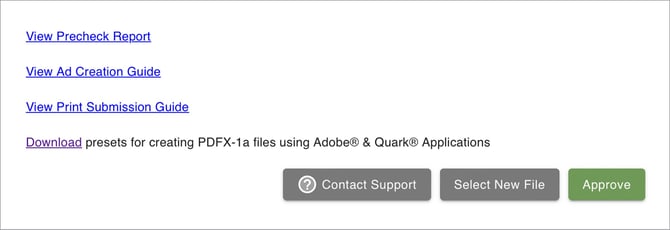
A Precheck Report will be provided if any warnings or errors are detected. The Precheck Report is downloadable and comments regarding each warning or error can be referenced in the report.
- Download Report: select View Precheck Report to downloaded the full report
- View Report: open the file using a PDF reader, comments can be viewed by opening “bookmarks” or with the “comment” function under the “Forms & Signatures” tool
- File Corrections: to correct your file, revise the original file and re-upload
📈 Preflight report and file corrections
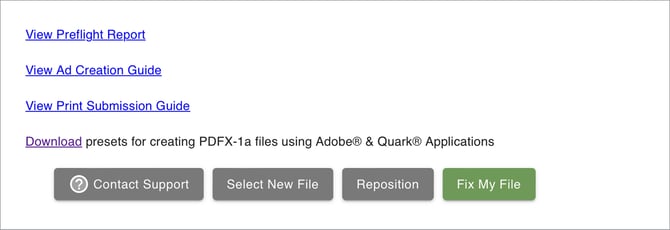
A Preflight Report will be provided if any warnings or errors are detected. The Preflight Report is downloadable and comments regarding each warning or error can be referenced in the report.
- Download Report: select View Preflight Report to downloaded the full report
- View Report: open the file using a PDF reader, comments can be viewed by opening “bookmarks” or with the “comment” function under the “Forms & Signatures” tool
- File Corrections: to correct your file, either revise the original file and re-upload or use the green button labeled “Fix My File” to allow the portal to attempt fixing the file
- Fix My File: when using "Fix My File", we recommend downloading a copy of the fixed file to check for any discrepancies or noticeable differences before continuing the preflight process
📋 Common File Warnings
AdShuttle warnings will appear in a column on the left-hand side of the preflight results screen. Warnings will be reviewed by our project management team and action may be required when warning occurs.
- Object using “Registration” color: This warning is typically detecting crop marks and color bars that are removed at pre-press. In order to avoid other possible registration color strokes or fills, we recommend using a rich black: C:60 M:40 Y:40 K:95
- Ink density in image exceeds 340%: This warning detects the specific number of pixels over 340%. Inks that are too dense could appear muddy or bleed through the final page. If your ad is using a large amount of black ink, we recommend converting any 100% black to a rich black instead. Amounts under 10k pixels are usually passable and won't reflect in final print.
- Image Resolution less than 300 ppi: This warning will appear if an image is being detected under 300 ppi. We recommend the use of images between 280-300 ppi for best print quality. The portal may be picking up hidden layers or design elements. Anything under 240 ppi will not be accepted by the portal and requires adjustment.
- Fill set to overprint: This warning detects elements created using overprint settings. We recommend avoiding the use of the overprint, which can cause objects to potentially disappear or not print as intended.
- Text under 8 pts and not 100% Black: This warning detects very small fonts any color other than black, which may not translate clearly at press. If your ad requires the use of text smaller than 8 pt, we recommend filling with rich black.
📋 Common File Errors
AdShuttle errors will appear in a column on the right-hand side of the preflight results screen, action is required when error occurs.
- Transparency Detected: Print-ready pdfs must be flattened and exported as a PDF X-1A. This can be corrected by re-exporting the file with SDG printer settings and presets (linked below). It usually occurs with QR codes and logos. Can use “Fix My File” to correct.
- Roboto Font: This font type is no longer supported and will trigger an error preventing the ad from uploading. Roboto fonts should be converted to outlines or replace with an alternative.
- Image Resolution under 240 ppi: The portal may be picking up hidden layers or design elements. Anything detected in the ad under 240 ppi will need adjustment. Download the preflight report to view the resolution measured. We recommend using images anywhere between 280-300ppi for best print quality.
- RGB or Spot Color Detected: All files must be in CMYK mode, any spot and RGB colors must be converted to CMYK. Can use “Fix My File” to correct.